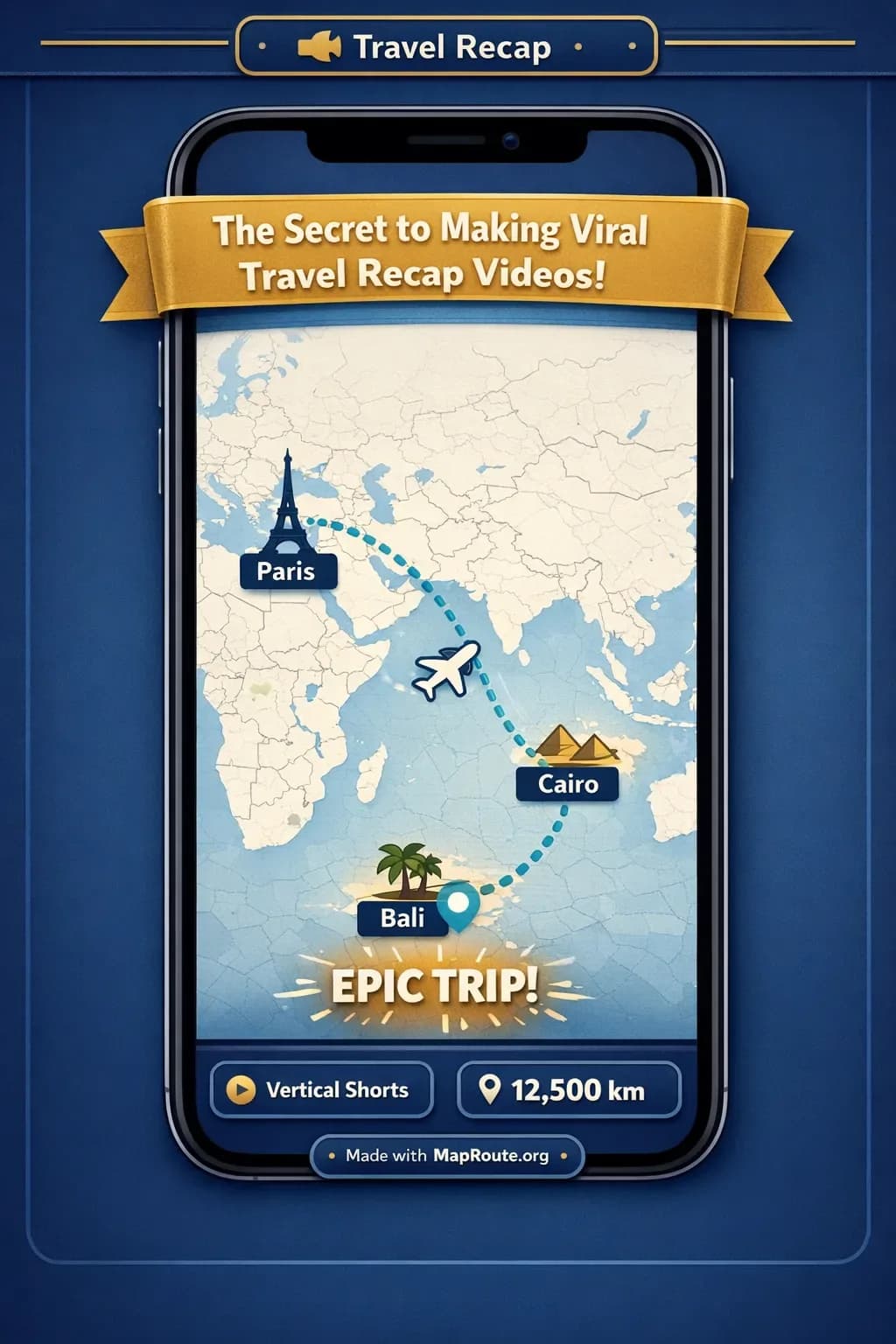
Why some travel recap Shorts blow up (and others don’t)
The secret to making viral travel recap videos for YouTube Shorts is combining a clear story hook with fast-paced visuals that are instantly understandable, even on mute. One of the easiest ways to do that is to anchor your recap with a simple animated map route, then wrap it in tight editing, bold captions, and strong travel moments.
Viewers scroll past most travel content because it feels random: pretty clips, no context. A map-based intro or transition tells people in one second where they’re going, how far, and why they should care. In this guide, you’ll learn a practical, repeatable workflow for building viral-ready Shorts around your trips, using Map Route as the map animation layer and your usual editor for everything else.
Step-by-step: Build a viral-ready travel recap Short
1. Decide the story, not just the destination
Viral Shorts are built around one clear idea, not a full itinerary. Before you touch any tools, define the angle of your recap in a single sentence.
- “4 days driving across America from New York to Los Angeles.”
- “London to Paris by train for under £100.”
- “I crossed a whole country in 24 hours.”
That sentence becomes your hook text, your title, and the logic for which clips you keep or cut. Anything that doesn’t support that one idea is B-roll for another video.
2. Capture or collect your best travel moments
You don’t need cinematic footage to go viral, but you do need variety and emotion. Aim for short, punchy clips you can cut quickly:
- Departures: packing, leaving home, boarding the train/plane/car.
- Transitions: out the window, station platforms, highway shots.
- Reactions: your face when something goes wrong or better than expected.
- Payoffs: first view of the city, iconic landmarks, food, sunsets.
Shoot in vertical when possible if you know it’s for Shorts, but don’t stress if some footage is horizontal—you can crop creatively in your editor.
3. Generate a clean map animation of your route
Now you’ll create a simple, clean route animation that shows the journey at a glance. Map Route is a browser-based travel map animation maker that turns a pair of locations into an animated journey—ideal as a hook or transition in a Short.
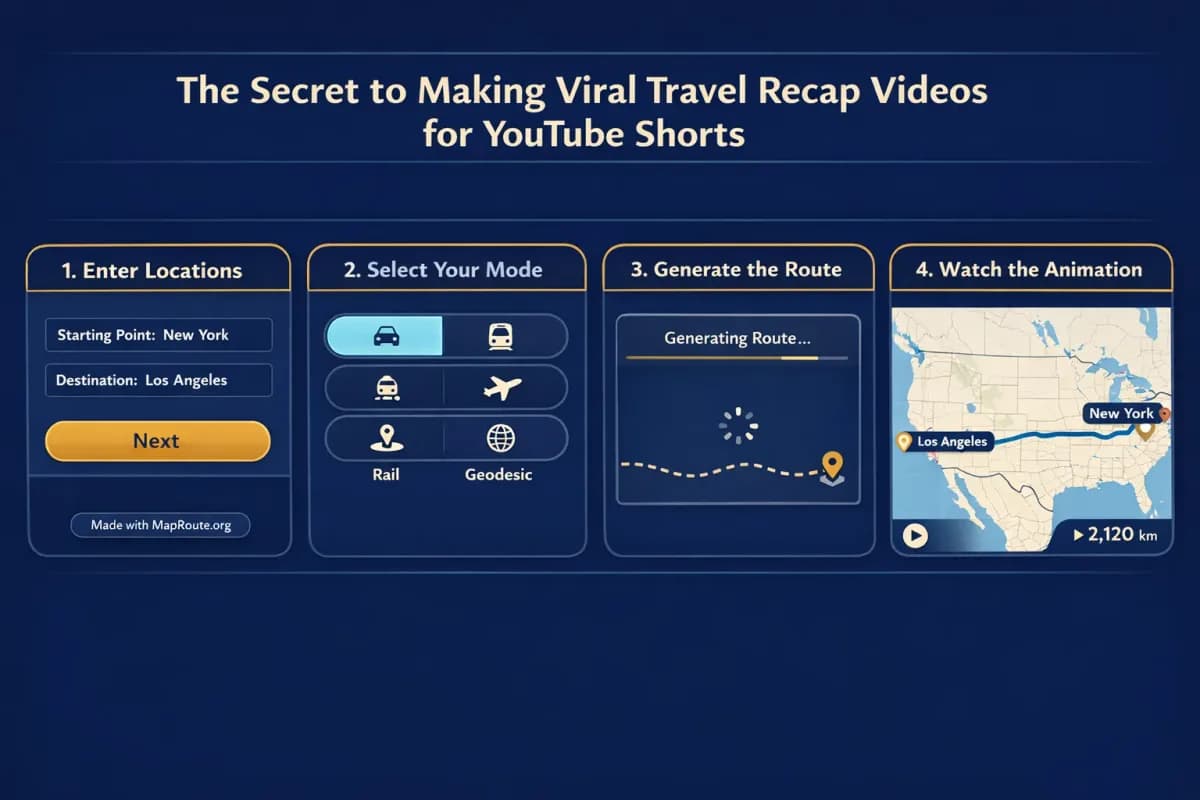
- Open maproute.org in a modern browser on your phone or desktop.
- In the From box, type your starting point (for example, “New York”).
- In the To box, type your destination (for example, “Los Angeles”).
- Choose a visualization mode: Road, Rail, Air corridor, or Geodesic.
- Click Generate Journey and wait for the animation to prepare.
- Play it back at 1x, 2x, or 4x speed to see what feels right for your edit.
Map Route only animates between two endpoints at a time. For multi-stop trips, generate one clip per leg (e.g., London → Paris by rail, then Paris → Barcelona by air) and stitch them in your video editor.
For a road-trip recap like New York to Los Angeles, the Road mode will show an estimated road path across the US. For a train story like London to Paris by rail, use the Rail mode to visualize the railway alignment if geometry is available for that pair.
4. Get a vertical-friendly map clip for Shorts
YouTube Shorts are vertical (9:16), so you want your map animation in that aspect ratio too. Map Route doesn’t have a manual aspect picker, but the player automatically follows your browser window shape:
- On a phone (or any window under 768px wide), the animation is 9:16—ideal for Shorts, TikTok, and Reels.
- On a wider desktop window (768px+), it’s 16:9—better for landscape YouTube intros.
To capture a 9:16 map clip for Shorts, either use your phone or narrow your desktop browser window until it’s vertical before you generate and export.
5. Download your map clip from Map Route
Once you’re happy with the journey animation, you can export it as a video and bring it into your editing app.
- Register a free account on maproute.org and verify your email.
- Generate your journey, then click Download Video.
- Your browser will capture the animation you just watched as a file.
- You’ll get an MP4 (H.264) when your browser supports it, otherwise WebM.
Downloads include a “Made with MapRoute.org” watermark and are captured in your browser, not as a guaranteed server-rendered HD export. If capture fails in your browser, the animation still plays—you just won’t get a file from that attempt.
On the free tier, you can generate and download within a small daily quota (each Generate Journey, Download Video, and Export Image counts as a use). Reading this blog doesn’t use your quota.
6. Edit the Short: hook, map, then moments
Map Route is not a full video editor—it doesn’t do titles, music, or B-roll. That’s where your usual editing app comes in (CapCut, VN, Final Cut, Premiere, etc.). A simple viral-friendly structure for a travel recap Short is:
- 0–1s: Hook text and/or reaction shot (“I drove across America in 4 days”).
- 1–3s: Map Route animation of New York → Los Angeles by road, with bold overlay text (“4,000+ km road trip”).
- 3–15s: Fast-cut highlights (departing, landscapes, gas stops, food, mishaps).
- 15–25s: Payoff shots (arriving in LA, final view, quick reflection).
For London → Paris by rail, your hook might be “London to Paris by train for under £100”, followed by a Rail-mode map animation, then clips of St Pancras, the train interior, the Channel crossing, and stepping out into Paris.
7. Add captions, music, and pacing for Shorts
YouTube Shorts are usually watched on mute, so on-screen text matters as much as audio. Since Map Route doesn’t handle audio or captions, add them in your editor:
- Use big, high-contrast text for the hook and key beats (“Day 1”, “Border crossing”, “We almost missed the train”).
- Choose a track from YouTube’s library or your editor, then cut your map clip and B-roll to the beat.
- Aim for a total length of 8–28 seconds for the main journey section—Map Route’s default 1x duration usually falls in that range and feels natural for Shorts.
Why map animations make travel recaps more clickable
A map animation is more than decoration; it’s a storytelling shortcut. It compresses context—distance, direction, and mode of travel—into a couple of seconds, which is exactly what you need to stop the scroll on Shorts.
Instant context in one frame
When someone sees a line drawing from New York to Los Angeles, they instantly understand it’s a cross-country road trip, even if they’ve never heard of you. When they see London to Paris by rail, they know it’s a quick international hop. That clarity makes your hook and title land much harder.
Automatic, creator-friendly camera moves
Map Route uses a 2D basemap (MapLibre with a light political-style theme) and automatically frames the journey based on distance. Short hops are framed tighter; long hauls are framed wider. There’s a moving marker along the computed line, and for many distances a subtle pitch adds depth, but there are no complex 3D keyframes to set up. You don’t have to think about camera paths at all.
Four modes for four types of travel stories
- Road: for road-trip recaps like New York → Los Angeles, where the estimated road path is part of the story.
- Rail: for train journeys such as London → Paris, visualizing the railway alignment when it can be computed.
- Air corridor: for flight-based stories (“I flew halfway across the world for 48 hours”).
- Geodesic: for straight-line distance comparisons or when road/rail geometry isn’t available.
Map Route is not a booking tool and doesn’t prove that a bus, train, or airline operates a specific route. The km tracker shows the length of the drawn line (road path, railway geometry, estimated air corridor, or geodesic), not ticketed distance or travel time.
Short, shareable durations by default
At 1x speed, Map Route calculates journey duration from distance, typically landing between about 8 and 28 seconds. That range is ideal for Shorts: long enough to feel like a real trip, short enough to keep retention high. You can always speed it up to 2x or 4x in the player, or trim it further in your editor.
Optimizing your travel recap for YouTube Shorts
Once you’ve got your map clip and B-roll, optimizing for Shorts is mostly about format and pacing. The goal is to make your recap instantly readable on a small screen and rewatchable.
Aspect ratio and framing
Keep everything in 9:16 from the moment you bring clips into your editor. For your Map Route animation, that means capturing it from a phone or a narrowed vertical browser window. When you edit, avoid tiny text near the bottom edge where Shorts UI elements can overlap.
Hooks that work for travel Shorts
- Time pressure: “48 hours in Paris”, “4 days across America”.
- Money: “London to Paris for under £100”, “How cheap is an overnight bus?” (even if Map Route is only visualizing a road path, not a bus service).
- Distance: “I crossed 3,000 km by train”, “I flew halfway around the world for a concert”.
Use your Map Route clip to visually prove your hook. The km tracker on the animation shows the length of the computed line, which is perfect for distance-based titles—just remember it’s not official ticket mileage.
Retention: keep something happening every 1–2 seconds
On Shorts, every second counts. Use your map animation as the calmest part of the video; then, once you cut to B-roll, change the shot or text every 1–2 seconds. Quick cuts, micro-stories (“we almost missed this train”), and clear text overlays will keep people watching to the end.
Using Map Route inside a bigger travel vlog workflow
If you also publish longer travel vlogs, you can use the same Map Route clips in both Shorts and full-length videos. The key is to think of Map Route as a reusable visual asset, not a one-off gimmick.
Landscape intros vs vertical Shorts
For a 16:9 YouTube vlog, open Map Route in a wide browser window (768px+). The player will render in landscape, and you can download that clip for use as an intro or chapter transition. For Shorts, repeat the same route in a vertical window for a 9:16 version.
Voiceover and music live in your editor
Map Route doesn’t record voiceovers or sync to audio. To keep your workflow simple:
- Import the downloaded map video into your editor.
- Record a short voiceover explaining the journey (“We’re taking the train from London to Paris, here’s the route”).
- Add your own music and adjust the map clip length by trimming or changing playback speed in your editor.
Recycling one journey across multiple formats
- YouTube vlog: longer narrative with the map as an intro and mid-journey transitions.
- YouTube Shorts: 15–25 second recap focused on one hook, anchored by the same route animation.
- Other platforms: reuse the 9:16 clip for TikTok and Instagram Reels with minor text tweaks.
Map Route vs heavy desktop tools for travel map intros
You can build animated map routes in heavyweight tools like Adobe After Effects or in mobile storytelling apps, but each option has trade-offs. Here’s how Map Route fits into a creator workflow focused on Shorts.
| Tool | Setup & learning curve | Typical use | Export & watermark | Best for |
|---|---|---|---|---|
| Map Route (maproute.org) | No install, browser-based; minimal learning curve | Quickly visualizing a two-point journey (road, rail, air corridor, geodesic) | Browser-captured MP4/WebM with a “Made with MapRoute.org” watermark; aspect follows window | Creators who want fast, simple map animations to drop into Shorts or vlogs |
| Adobe After Effects (with map plugins) | Desktop install; steep learning curve; keyframes and plugins | Highly customized map animations with complex camera paths and 3D-style moves | Desktop renders with fine control over resolution and overlays; no built-in watermark | Studios and advanced editors who need full control and are willing to spend time |
| Mobile storytelling apps (e.g., travel animation apps) | Phone app install; simple templates | Template-based travel stories with built-in stickers, text, and music | Usually exports directly to vertical formats; watermark and pricing vary by app | Casual users who want an all-in-one app with limited customization |
Map Route focuses on the map animation only. You’ll still add titles, music, and edits in your own video editor, which gives you more control over the final Short.
Travel recap Shorts checklist for creators
Before you publish your next travel recap Short
- I’ve defined a single clear hook for this Short (distance, time, money, or challenge).
- I’ve captured or selected B-roll that supports that one story, not every moment of the trip.
- I’ve generated a Map Route animation for the key journey (e.g., New York → Los Angeles by road, London → Paris by rail).
- I’ve captured the map clip in 9:16 by using a phone or a vertical browser window.
- I’ve downloaded the map video from a verified Map Route account, knowing it includes a “Made with MapRoute.org” watermark.
- I’ve imported the clip into my editor and added text, music, and any voiceover there.
- My Short changes something (shot, text, or beat) at least every 1–2 seconds.
- The final video is easy to understand on mute and makes viewers want to comment or share.
FAQ
Can I use Map Route to make YouTube Shorts intros and transitions?
Yes. Map Route is well suited for creating short travel route animations you can drop into YouTube Shorts as hooks or transitions. Open maproute.org in a browser, generate a journey between two places, and download the video. Capture it in 9:16 by using your phone or a vertical browser window, then add text, music, and edits in your usual video editor.
Does Map Route support multi-stop routes for complex trips?
Not in a single file. Each Map Route animation is between exactly two endpoints (a From and a To). There’s no multi-stop waypoint editor and you can’t combine plane, train, and road in one Map Route journey. For multi-leg trips, generate each pair separately (for example, London → Paris by rail, then Paris → Rome by air corridor) and stitch the clips together in your own editor.
Is there a watermark on Map Route exports?
Yes. All downloaded videos and exported images from Map Route include a “Made with MapRoute.org” watermark. There is currently no watermark-free export option. If you want to minimize its impact in your YouTube Shorts, frame your text and other overlays around it rather than trying to crop it out.
What devices and browsers can I use with Map Route?
Map Route runs in modern browsers, including Chrome and Safari, and works on both phones and desktop. You don’t install an app or plugin; you just open maproute.org, search your From and To locations, choose a mode, and generate the animation. Place search, generate, play, pause, and replay work on both mobile and desktop. Image and video downloads require a registered, verified account, and video capture can occasionally fail in some browsers even though playback still works.
Is Map Route really free, and are there usage limits?
Map Route is free to use, but there are daily limits. Logged-out visitors can generate up to 3 journeys but cannot download images or videos. With a verified free account, you can perform 5 combined actions per UTC day—Generate Journey, Download Video, and Export Image each count as one. The limit resets daily. Reading blog posts or browsing the site does not consume your quota, and there’s no self-serve checkout; paid plans are handled manually by contacting the team.
What kind of video file will I get from Map Route for editing?
When you click Download Video after generating a journey, Map Route performs a browser capture of the animation you see in the player, including the km tracker and watermark. If your browser supports it, the file will be an MP4 using H.264; otherwise, it will be a WebM file. This isn’t a guaranteed server-rendered HD export, so quality depends partly on your browser, and capture can fail in some environments even though the animation itself still plays.
Can Map Route add music, voiceover, or text directly to my travel recap?
No. Map Route focuses on the map animation only. It doesn’t provide audio upload, beat-sync, voice recording, or text overlays. The recommended workflow is to download the route video from Map Route and then add music, voiceover, captions, and B-roll in your preferred video editor such as CapCut, VN, Premiere Pro, or Final Cut.
How accurate are the distances shown in Map Route for my travel videos?
The distance shown in Map Route is the length of the line it actually computed: a road path in Road mode, railway geometry in Rail mode, an estimated air corridor in Air corridor mode, or a geodesic line in Geodesic mode. It’s useful for storytelling (“we drove over 4,000 km”), but it’s not a driving time estimate, a ticket distance, or an airline’s official mileage. Air corridor and geodesic distances are usually shorter than a comparable road path between the same places.