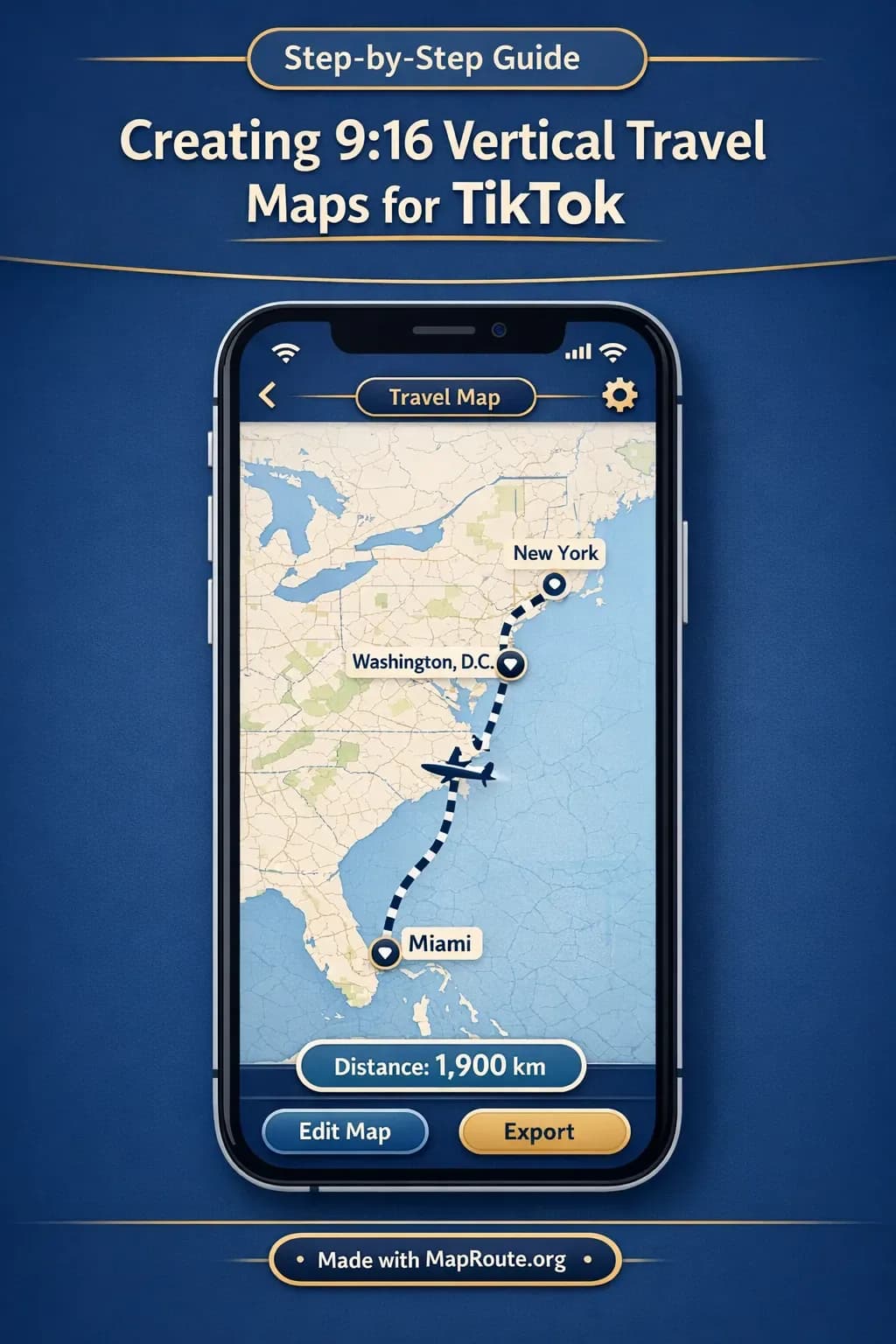
Why 9:16 vertical travel maps work so well on TikTok
You can create 9:16 vertical travel map videos for TikTok directly in your browser with Map Route—no plugins or desktop software required. The trick is to use a phone (or a narrow browser window) so the player records in a vertical aspect by default.
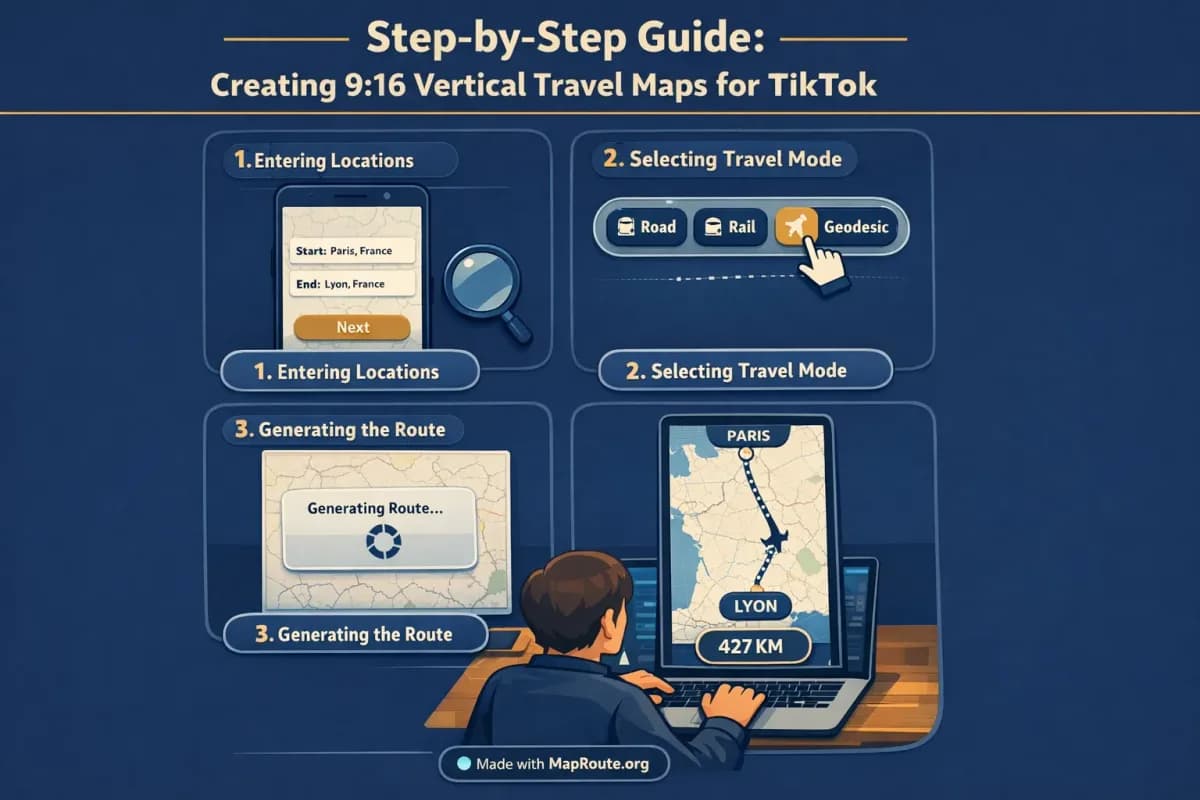
For travel creators, a clean animated map is one of the fastest ways to explain where you’re going before you cut to your main footage. Map Route focuses on animating the journey line and distance between two places; you then drop that clip into your usual editing app to add voiceover, transitions, and music. In this guide, you’ll walk through the full workflow for TikTok-friendly 9:16 exports, using two concrete examples: Paris to Lyon by rail and Delhi to London as an estimated air corridor.
Step-by-step: making a 9:16 vertical travel map for TikTok
1. Set up your device for a vertical aspect
Map Route doesn’t have an aspect ratio dropdown. Instead, it automatically matches the shape of your browser window. To get a 9:16 TikTok-style frame, you need the window to be under 768px wide.
- On mobile: Simply open maproute.org in your phone browser in portrait orientation. The player will use a 9:16 aspect, perfect for TikTok, Instagram Reels, YouTube Shorts, and Stories.
- On desktop or laptop: Resize your browser window to be tall and narrow—less than 768px wide. Think of it like simulating a phone screen. Once the window is narrow enough, the player switches to 9:16.
- Avoid full-width desktop for TikTok clips: At 768px and wider, Map Route switches to a 16:9 landscape frame, which is better suited for YouTube intros rather than vertical feeds.
There is no in-app toggle to change aspect ratio. If your exported video looks landscape, your window was wider than 768px when you recorded it.
2. Open Map Route and search your start and end points
Map Route animates a journey between exactly two places at a time: a From and a To. It’s not a multi-stop editor, so if your TikTok story has several legs, you’ll generate one clip per leg and stitch them together later in your editing app.
- Go to maproute.org in a modern browser (Chrome, Safari, or similar) on your phone or desktop.
- In the From field, type at least two characters of your starting place. For example: “Paris”.
- Choose the correct suggestion from the list (the labels show context like city, region, or country).
- In the To field, type your destination. For a rail example, use “Lyon”. For a long-haul air corridor example, try “Delhi” to “London”.
- Confirm both locations are correct before you move on.
Place search uses public geocoders, so most cities, regions, and countries work, but not every single village or airport code is guaranteed to resolve.
3. Choose the visualization mode that fits your story
Map Route offers four visualization modes. Each one draws a different style of line and labels the distance accordingly. For TikTok, pick the mode that best matches how you actually travelled—or how you want to frame the journey in your story.
- Road: draws a road path from a routing engine. Good for road trips, bus-style journeys, or vanlife content (but it’s not a bus timetable or booking tool).
- Rail: uses railway alignment where geometry is available. Ideal for clips like “Paris to Lyon by train” or “My first high-speed rail trip”. Long international routes may fail if rail geometry can’t be computed.
- Air corridor: shows an estimated great-circle line between two places. Great for long-haul flights like “Delhi to London” or “24 hours in planes and airports”.
- Geodesic: a straight-line distance on the globe. Useful when road or rail geometry can’t be computed, or when you just want a minimal “as-the-crow-flies” line.
If road or rail geometry can’t be found for your pair, Map Route will say so and offer a geodesic line instead. There is no cruise-ship, ferry, or bus-service mode, and you can’t combine plane + train + road in one file—you’d generate each mode separately.
4. Generate and preview your journey
- Click or tap Generate Journey.
- Watch the prep stages: Resolving places → Requesting geometry → Framing the map → Preparing journey.
- When the player loads, hit Play to preview. A marker moves along the line, and a km tracker shows the distance as the animation progresses.
- Use the speed control to switch between 1x, 2x, and 4x. For TikTok, 1x is usually best because it keeps the clip in the 8–28 second range, which feels natural for vertical feeds.
The animation length at 1x is automatically based on distance—roughly 8–28 seconds. It’s not a manual duration setting and doesn’t sync to music; you do that later in your editor.
5. Create a free account to unlock downloads
You can test Map Route without logging in, but logged-out visitors can’t download images or videos. If you want a clip you can post to TikTok, you’ll need a verified account.
- Click Register on maproute.org and sign up with a non-disposable email.
- Verify your email address. Unverified accounts can’t log in, generate, or download.
- Once verified, log in and regenerate your journey if needed.
A verified free account gives you 5 combined uses per UTC day. Generate Journey, Download Video, and Export Image each count as one use. There is no self-serve checkout; paid plans are manual upgrades only.
6. Download your 9:16 travel map video
With your journey playing in a vertical window, you’re ready to capture the clip.
- Confirm your browser window is still narrow (under 768px) or that your phone is in portrait. This locks in the 9:16 frame.
- Press Replay so the animation starts from the beginning.
- Click or tap Download Video. Map Route captures the animation directly from your browser.
- Wait for the capture to complete, then save the file. When supported by your browser, you’ll get an MP4 (H.264); otherwise, you’ll receive a WebM file.
Downloads include a “Made with MapRoute.org” watermark. There is no watermark-free export. In some browsers, capture can fail—if that happens, the player still works, but you’ll see a notice instead of a video file.
7. Edit and post to TikTok
Map Route is not a full video editor. It doesn’t add titles, voiceover, B-roll, transitions, or music. The recommended creator workflow is to treat the downloaded map clip as one layer in your TikTok project.
- Import the Map Route clip into your usual editing app (CapCut, VN, Premiere Rush, Final Cut, etc.).
- Trim the start or end if you want to tighten the pacing.
- Add a voiceover explaining the route: for example, “Today I’m taking the train from Paris to Lyon—here’s the route.”
- Layer B-roll or talking-head footage before or after the map clip, or picture-in-picture over part of it.
- Add music and align your cuts to the beat. Map Route doesn’t sync to audio, so you do this entirely in your editor.
- Export in 9:16 and upload to TikTok with a strong hook in the caption and on-screen text.
Key Map Route features that matter for TikTok creators
When you’re publishing to a fast-moving platform like TikTok, the details of how a tool behaves really matter. Here are the Map Route features that are most relevant if you’re building a vertical travel map workflow.
Automatic framing and subtle 3D-style pitch
You don’t have to keyframe a camera like you would in motion graphics software. Map Route automatically frames the journey based on distance: tighter for short hops, wider for long hauls. On some distances, it adds a slight map pitch (about 22° under ~1800 km and about 8° under ~5000 km, with 0° for very short or very long trips). This gives a hint of depth without you having to manage any 3D controls.
The player is a MapLibre map over an OpenFreeMap / OpenStreetMap basemap, not a 3D globe renderer and not an After Effects-style camera system. You can’t set custom camera paths or orbit moves.
Four distinct journey styles
Because TikTok audiences respond well to clarity, the four visualization modes help you visually separate different types of travel content:
- Road path km: ideal for road trip diaries, campervan life, or overland challenges.
- Railway geometry km: great for rail vlogs, Interrail-style adventures (though Map Route itself isn’t an Interrail planner or ticketing tool).
- Air corridor estimate km: perfect for long-haul flight stories and “how far did I actually travel?” clips.
- Geodesic km: a clean, minimal straight-line look when you don’t need actual routing.
Distance-based timing and speed options
The animation length at 1x is automatically calculated from the distance, roughly following the formula 6 + distanceKm/400, clamped to about 8–28 seconds. You can then switch playback to 2x or 4x if you want a faster feel. For TikTok, 1x often lands in the sweet spot for a single vertical map clip; if you’re cutting it into a longer edit, 2x can help you keep the segment snappy.
Copyable links for repeatable journeys
If you regularly feature the same corridor—say, “Delhi to London” in multiple videos—you can use Copy link. This stores the From, To, and mode so you can regenerate the same journey later without retyping. It’s handy when you’re testing different speeds or when you want to rebuild a clip in a different style.
Example vertical routes for your next TikTok
Example 1: Paris to Lyon by rail (city-to-city TikTok intro)
This is a classic short-to-medium rail journey that works beautifully as a 9:16 opener for a vlog or TikTok mini documentary.
- On your phone, open maproute.org in portrait.
- Set From to Paris, France and To to Lyon, France.
- Select Rail as the visualization mode.
- Generate the journey and preview at 1x speed.
- Download the vertical video after logging in with a verified account.
- In your editor, place this map clip as the very first shot, then cut to station B-roll, train interiors, and arrival footage.
Because the distance is moderate, the map will frame tightly enough that viewers can clearly see the movement between the two cities, and the km tracker will show a railway geometry km value that reinforces the idea of a tangible journey.
Example 2: Delhi to London as an air corridor (long-haul story hook)
For long-haul flights, an air corridor visualization gives your audience an instant sense of scale. It’s perfect for stories like “I moved from Delhi to London” or “24 hours of flying to Europe.”
- Open maproute.org on your phone or in a narrow desktop window.
- Set From to Delhi, India and To to London, United Kingdom.
- Choose Air corridor as the mode.
- Generate and preview at 1x. The map will frame a large section of the globe, and the km tracker will show an air corridor estimate km.
- Download the video in vertical format.
- Use this clip over a voiceover explaining why you’re making the trip, then cut into airport and in-flight footage.
If you want to show multiple legs (for example, Delhi → Dubai → London), you’d generate separate clips for each pair and edit them together. Map Route itself doesn’t support multi-stop paths in one file.
Optimizing your vertical map clips for TikTok and Reels
Once you have a clean 9:16 map animation, the social performance comes down to how you frame and present it. A few small decisions can dramatically increase watch time and shares.
Use the map as a hook, not the whole story
- Open with 3–5 seconds of the map animation while your on-screen text or voiceover sets up the stakes (moving countries, first solo trip, tight connection, etc.).
- Then cut quickly to human moments: boarding, views from the window, or your reaction.
- Return to the map briefly if you change direction, cross a border, or reveal the total distance at the end.
Keep key text out of the UI zones
TikTok overlays like captions, buttons, and usernames can cover parts of your frame. Because Map Route includes a distance tracker and watermark, plan your own text and stickers around those elements when you edit:
- Avoid placing critical titles directly over the km tracker.
- Use upper thirds for your main hook text so it stays visible above TikTok’s bottom UI.
- If you’re using subtitles, keep them short and high enough that they don’t clash with the map labels.
Match pacing to the feed, not the raw map duration
Even though the Map Route animation is 8–28 seconds at 1x, you don’t have to use it uncut. For high-energy TikToks, it often works better to:
- Use only the middle portion where the movement is clearest.
- Speed the clip up again in your editor if you’re cutting to a very fast beat.
- Overlay quick text like “800 km by rail today” or “7,000+ km in one flight” to give viewers an instant payoff.
Integrating Map Route into your travel vlogging workflow
If you create both TikToks and longer vlogs, you can reuse the same Map Route journeys in multiple formats by changing only the aspect ratio and the edit around them.
Vertical for TikTok, horizontal for YouTube intros
To get a 16:9 clip for YouTube, open Map Route in a browser window that’s 768px wide or more. The player will switch to a landscape frame, which you can download and use as a vlog intro. The underlying journey is identical; only the framing changes.
- Generate the journey once.
- Capture a 9:16 version on your phone for TikTok.
- Later, open the same journey link on a wider desktop window and capture a 16:9 version for YouTube.
Add your storytelling layers outside Map Route
Map Route deliberately focuses on the map animation itself. All the storytelling layers—titles, lower thirds, VO, B-roll, and music—belong in your editor of choice. It also doesn’t provide audio upload or beat-sync tools, so any timing to music is done after you’ve downloaded the clip.
How Map Route compares to other ways of making travel map videos
If you’ve tried building animated route maps with heavyweight video tools or mobile apps, Map Route sits in a different spot: focused, browser-based, and designed specifically for two-point journeys.
| Tool | Setup & Access | Route Creation Style | Aspect Handling | Best Use Case |
|---|---|---|---|---|
| Map Route (maproute.org) | Browser-based, no install; works on phone and desktop with verified account for downloads | Search From + To, pick mode (road, rail, air corridor, geodesic); automatic geometry and framing | Aspect follows window: <768px = 9:16, ≥768px = 16:9; no manual picker | Fast, clean travel route clips for TikTok/Reels/Shorts and vlog intros |
| Desktop motion graphics software (e.g., After Effects with map plugins) | Full desktop install; steeper learning curve; often paid | Manual keyframes, custom cameras, layered map design; highly flexible but time-consuming | Manual compositions for any aspect ratio; full control but more setup | Complex branded sequences, fully custom 3D camera moves, advanced compositing |
| General mobile travel map apps (e.g., route story apps like TravelBoast-style tools) | Mobile app install; usually touch-first interfaces | Often template-based with pre-set routes or icons; may support multiple stops in-app | Typically focused on vertical social formats; aspect options vary by app | Quick, stylized route stories entirely from a phone, often with built-in stickers and sounds |
Map Route does not try to replace full video editors or motion graphics suites. It’s designed to generate the map animation only; you finish the edit elsewhere.
Creator checklist: from idea to TikTok-ready 9:16 map
Before you generate your map
- Decide which leg of your trip you want to show (e.g., Paris → Lyon or Delhi → London).
- Choose the visualization mode that matches your story: road, rail, air corridor, or geodesic.
- Confirm you’re on a phone in portrait or a narrow desktop window for 9:16.
- Register and verify your Map Route account if you plan to download.
When using Map Route
- Enter clear From and To locations and pick the right suggestions.
- Generate the journey and test playback at 1x speed.
- Use Copy link if you want to reuse the same route later.
- Download Video while the player is in 9:16 to keep it TikTok-ready.
- Remember that downloads include a “Made with MapRoute.org” watermark.
In your editing app before posting
- Import the Map Route clip into your editor as a vertical asset.
- Trim the clip to match your hook and music pacing.
- Add voiceover or captions that explain why this route matters.
- Layer B-roll or reaction shots around the map segment.
- Export in 9:16 and upload to TikTok, Reels, or Shorts with a strong caption.
FAQ
Can Map Route create 9:16 vertical videos for TikTok?
Yes. Map Route automatically uses a 9:16 aspect ratio whenever your browser window is under 768px wide, which includes phones in portrait and narrow desktop windows. There is no aspect ratio picker; you control the shape by resizing the window or using your phone vertically, then downloading the video while it’s in that vertical layout.
Does Map Route support multi-stop routes in one TikTok clip?
No. Each Map Route journey is between exactly two endpoints: a From and a To. There’s no built-in multi-stop waypoint editor and you can’t combine plane, train, and road in one file. To show multiple legs in one TikTok, generate a separate clip for each pair of locations and then combine them in your own video editor.
Is there a watermark on Map Route exports?
Yes. Both video and image downloads from Map Route include a “Made with MapRoute.org” watermark. There is currently no watermark-free export option, even on upgraded plans. You can still add your own branding, titles, and overlays in your editor around the watermark.
How do I download a travel map video from Map Route?
First, register on maproute.org and verify your email; logged-out visitors can’t download. Then generate your journey, set the window to the aspect you want (9:16 for TikTok or 16:9 for YouTube), and click Download Video. The tool captures the animation directly from your browser and saves it as an MP4 (H.264) when supported, or otherwise as a WebM file. If capture fails in your browser, the player still works but you won’t get a video file for that attempt.
Is Map Route free to use for creators?
Yes. Map Route is free to use, with limits. Logged-out visitors can generate up to 3 journeys but can’t download. A verified free account gives you 5 combined uses per UTC day, where Generate Journey, Download Video, and Export Image each count as one use. There is no self-serve checkout; paid plans are handled manually via the account page.
Can I add music or voiceover directly in Map Route?
No. Map Route focuses only on generating the animated map. It doesn’t include audio upload, beat-sync, or voiceover recording. The recommended workflow is to download the map clip and then add music, narration, text, and other edits in your usual video editor before posting to TikTok, Reels, or Shorts.
What devices and browsers work with Map Route?
Map Route runs in modern browsers on both phones and desktop computers, including common choices like Chrome and Safari in typical use. Place search, journey generation, and playback work across devices. Video and image download require a verified account, and in some browser setups the capture step can fail even though playback is fine.
Does Map Route cover every city and route worldwide?
Map Route relies on public geocoding and routing services, so it can search many cities, regions, and countries worldwide, but coverage is not guaranteed for every village, landmark, or airport code. Road routing uses OSRM, rail uses OpenStreetMap railway geometry where available, and the map tiles come from OpenFreeMap / OpenStreetMap. When road or rail geometry can’t be computed for a pair, Map Route offers a geodesic line instead.