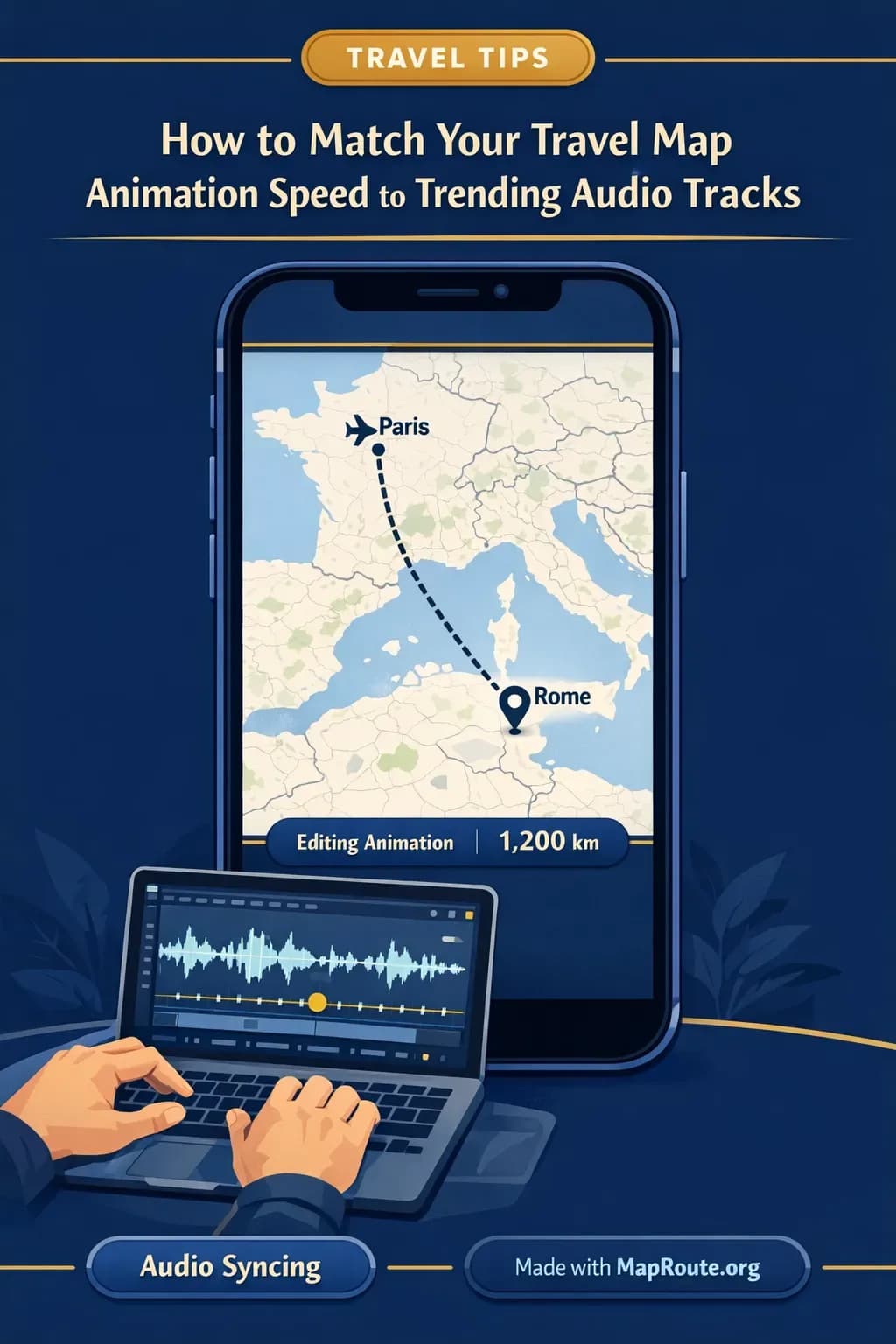
Match map animations to audio without losing the trend
You match Map Route travel map animations to trending audio by controlling clip length with 1x, 2x, or 4x speed in Map Route, then syncing the final timing to sound inside your editing app. Map Route doesn’t upload or analyze audio, so the actual beat sync happens later in CapCut, VN, Premiere, Final Cut, or your editor of choice.
This is good news if you’re a creator: you get a clean, reusable animation of your journey, and you stay in full control of how it lands on TikTok, Reels, or YouTube Shorts. In this guide we’ll walk through a concrete workflow for matching your travel map animation speed to trending audio, using real examples like London to Paris by rail and Tokyo to Sydney by air corridor.
You’ll learn how Map Route decides the base duration of your animation, how to choose between 1x, 2x, and 4x to fit common audio lengths, and how to line everything up in your editor so the marker movement feels like it’s dancing with the beat instead of fighting it.
Map Route is a browser-based visualizer. It doesn’t add music or beat detection; you always sync audio later in a separate video editor.
Step‑by‑step: From route idea to audio‑matched clip
1. Plan your route and destination platforms
Before you even open Map Route, decide what you’re posting and where. A 6‑second TikTok transition wants a very different clip than a 25‑second YouTube intro.
- Platform: TikTok / Reels / Shorts vs long‑form YouTube or a vlog intro
- Orientation: vertical (phone, 9:16) vs horizontal (desktop window, 16:9)
- Route: short hop (London → Paris by rail) vs long haul (Tokyo → Sydney by air corridor)
- Audio: ultra‑short meme sound (3–5s), typical trending audio (7–15s), or longer track (20–30s)
Map Route animations are always between two places: one From and one To. For multi‑stop trips, generate each leg separately and join them in your editor.
2. Generate your travel map animation in Map Route
- Open maproute.org in a modern browser (Chrome, Safari, etc.). No app install needed.
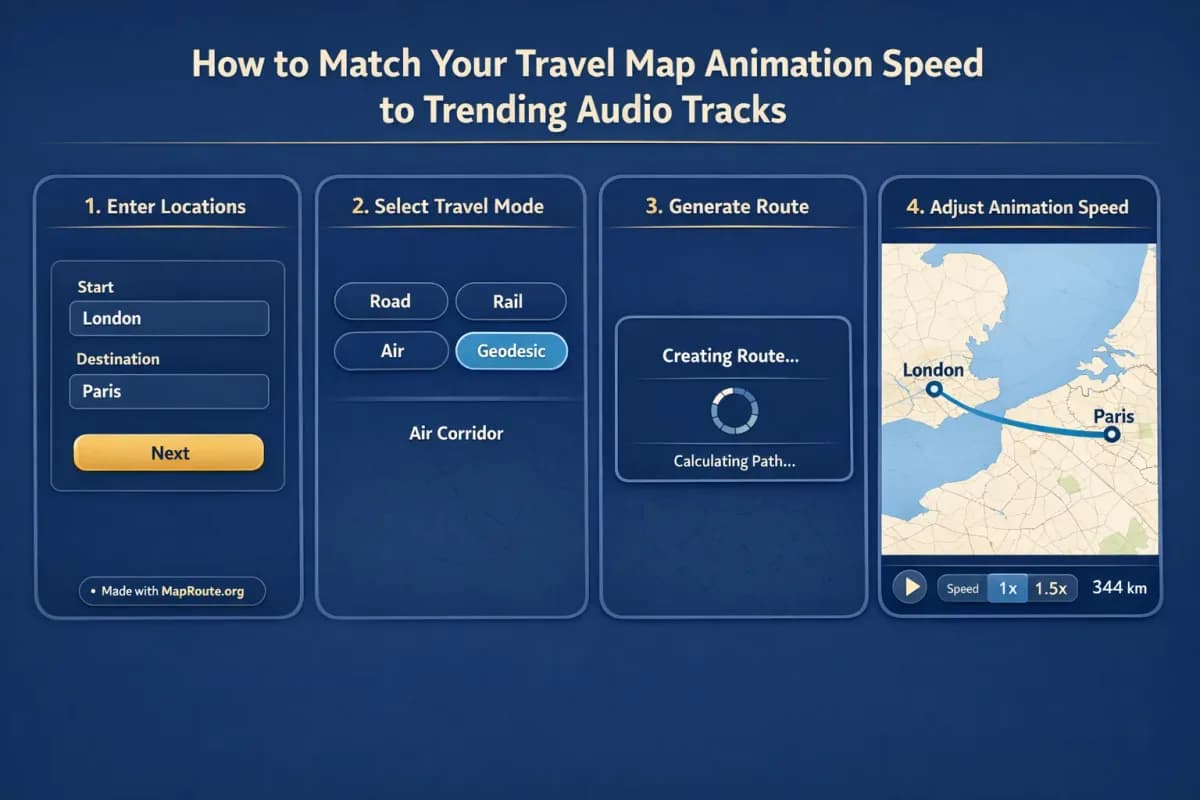
- In the From box, start typing your origin (for example, “London”). Pick the right suggestion.
- In the To box, type your destination (for example, “Paris”). Again, pick from suggestions.
- Choose a visualization mode: Road, Rail, Air corridor, or Geodesic.
- Click Generate Journey and wait for the stages to complete (resolving places, requesting geometry, framing the map, preparing journey).
For our example, choose Rail for London → Paris to emphasize the railway alignment, or Air corridor for Tokyo → Sydney to show the estimated long‑haul air path.
3. Pick the base animation speed (1x, 2x, or 4x)
Map Route computes a base duration at 1x from the distance between your two places. At 1x, clips are typically around 8–28 seconds long. Short hops sit near the low end, long hauls near the high end. You can then switch playback to 2x or 4x to make the same journey feel snappier.
- 1x speed: Best when you want a relaxed, cinematic feel or need a longer intro (e.g., 15–25s YouTube opener).
- 2x speed: Good default for most Reels and TikToks that use 7–15s audio.
- 4x speed: Ideal for tight trends, quick transitions, or when the route is very long but your audio is short.
Play the journey at each speed and watch the marker move. Think about the trend you’re using: is it a slow build, a punchy drop, or a super‑fast meme? Choose the speed whose total duration is closest to your chosen audio clip.
4. Capture the animation and download the video
Once you’re happy with the speed and framing, you’ll capture the animation you see in the player as a downloadable video.
- If you’re not logged in, create a free account on Map Route and verify your email.
- Set your browser window width based on the platform:
- - Phone or narrow window under 768px wide for vertical 9:16 (TikTok, Reels, Shorts).
- - Wider window from 768px up for horizontal 16:9 (YouTube intros, landscape vlogs).
- Replay the journey at your chosen speed to confirm the timing.
- Click Download Video to capture the animation as a clip (MP4 in many browsers, otherwise WebM).
Downloads include a small “Made with MapRoute.org” watermark. There is no watermark‑free export in the current product.
5. Sync to trending audio in your editing app
The audio magic happens in your editor, not in Map Route. Import the downloaded clip into CapCut, VN, DaVinci Resolve, Premiere Pro, Final Cut, or any editor you use.
- Import the Map Route clip and drop it on your timeline.
- Add your trending audio and place it on an audio track below.
- Trim either the start or end of the map clip to line up the main movement with the beat drop or vocal cue.
- If needed, apply a slight speed change in the editor (e.g., 90–110%) to nail perfect sync.
- Add titles, stickers, and B‑roll around the map clip to build the full story.
How Map Route handles duration, speed, and aspect ratio
Automatic duration based on distance
Map Route calculates the 1x duration from the distance between your From and To. Internally, it uses a simple formula (roughly 6 + distanceKm/400, clamped) to give you a clip that usually sits somewhere between about 8 and 28 seconds. You don’t have to guess how long London → Paris vs Tokyo → Sydney will be; the player just works it out.
That distance also drives the km tracker label in the corner of the player, which will say something like “railway geometry km” for a rail route, “road path km” for a road route, or “air corridor estimate km” for an air corridor journey. The km number is the length of the line Map Route actually computed, not official ticket distance or travel time.
Speed controls: 1x, 2x, 4x for creative timing
Inside the Map Route player you can switch between 1x, 2x, and 4x playback speeds. This doesn’t change the geography, only how quickly the marker icon travels along the line.
- Use 1x when you have a slower, cinematic track or want viewers to read on‑screen text.
- Use 2x for most social audio trends where the beat is energetic but not frantic.
- Use 4x when your route is long but your trending audio is short and punchy.
There is no automatic beat‑sync or audio upload in Map Route. All speed decisions are visual; you do the final micro‑sync in your editor.
Aspect ratio: how to get 9:16 vs 16:9 for your clips
Map Route doesn’t have an aspect ratio picker. Instead, the aspect follows your browser window size:
- Under 768px wide (phone or narrow desktop window): the player is 9:16, ideal for TikTok, Instagram Reels, YouTube Shorts, and Stories.
- From 768px wide upward (typical laptop or full‑screen desktop): the player is 16:9, ideal for YouTube, landscape vlogs, or widescreen reels.
If you know your audio trend is living on TikTok or Reels, generate and capture on your phone or a narrowed desktop window so your downloaded clip is already vertical.
Exports, accounts, and limits that matter to creators
- You can try Map Route for free in the browser without installing anything.
- Logged‑out visitors can generate up to 3 journeys but can’t download images or videos.
- With a verified free account, you get 5 combined uses per UTC day (Generate Journey, Download Video, and Export Image each count as one).
- Video downloads are browser captures of the animation you watched, including the km tracker and the “Made with MapRoute.org” watermark.
- Export Image gives you a WebP still frame of the current view and aspect ratio.
Practical timing examples with London–Paris and Tokyo–Sydney
Example 1: London → Paris by rail for a 12‑second Reel
Imagine you’re sharing a Eurostar‑style trip recap and you’ve found a 12‑second trending audio on Instagram Reels. You want the map to show your London → Paris rail journey right as the beat drops into the chorus.
- In Map Route, set From to London and To to Paris.
- Choose Rail mode to visualize the railway alignment between the cities.
- Generate the journey and test the 1x speed. Suppose the clip feels a bit too long against your 12‑second audio.
- Switch to 2x speed and replay. Now the marker reaches Paris much quicker, likely closer to your target length.
- Download the video at 2x speed in vertical 9:16 (phone or narrow window).
- In your editor, place the map clip so the moment the marker hits Paris lines up with the main beat or lyric in your audio.
If the clip is still slightly off, trim a bit of the lead‑in or tail in your editor rather than regenerating. The goal is to keep the full journey visible while matching the emotional peak of the sound.
Example 2: Tokyo → Sydney by air corridor for a 6‑second TikTok
Now imagine a quick TikTok trend using a 6‑second sound where creators show long‑haul jumps. You want a snappy Tokyo → Sydney air corridor animation that hits hard but doesn’t drag.
- In Map Route, set From to Tokyo and To to Sydney.
- Choose Air corridor to show the estimated great‑circle line between the two cities.
- Generate the journey and preview at 1x. A long‑haul route may take closer to the upper end of the duration range.
- Switch to 4x and replay. The marker now covers the entire distance much faster, more in line with a 6‑second sound.
- Download the 4x clip in 9:16 for TikTok.
- In your editor, drop the map clip on the timeline, add the 6‑second sound, and align the start of the marker movement with the very first beat of the audio.
Because the clip is short and energetic, you can layer quick text like “Tokyo → Sydney in one jump” or cut directly into landing B‑roll when the marker reaches Sydney.
Chaining multiple legs for complex trips
If your story has several legs (for example, London → Paris → Tokyo → Sydney), Map Route won’t create that as one continuous route. Instead, you would:
- Generate and download London → Paris as one clip.
- Generate and download Paris → Tokyo as another clip.
- Generate and download Tokyo → Sydney as a third clip.
- In your editor, place the three clips back‑to‑back and sync the entire sequence to a longer audio track.
Multi‑stop trips require editing outside Map Route. Each Map Route generate is exactly one From and one To.
Optimizing for TikTok, Reels, and Shorts with audio in mind
Use the right aspect ratio from the start
Trending audio on TikTok, Reels, and Shorts is almost always paired with vertical 9:16 video. Instead of cropping later, generate your Map Route journey in a vertical aspect by using your phone or narrowing your desktop browser window below 768px before you click Generate Journey or Download Video.
Match clip length to typical audio durations
- 3–6 seconds: Use 4x speed and tight trimming; ideal for quick memes and transitions.
- 7–15 seconds: Use 2x speed or a short 1x route; this is the sweet spot for many trends.
- 15–28 seconds: Use 1x speed on longer routes; good for storytelling sounds and mashups.
If your chosen trending audio is shorter than your map clip even at 4x, treat the map as a lead‑in and cut to B‑roll or talking‑head content when the beat drops.
Lean on captions and overlays instead of in‑map text
Map Route doesn’t add titles, stickers, or captions inside the animation. That’s actually helpful for social: you’re free to style each platform differently. Keep the map clean, then add your text overlays, emojis, and subtitles in‑app or in your editor so they match the rhythm and lyrics of your audio.
Reuse the same map clip across multiple sounds
Because Map Route doesn’t bake in audio, you can reuse the same London → Paris or Tokyo → Sydney clip across several trends. In one edit you might speed‑ramp it to a fast sound; in another, you might slow it slightly and add a voiceover. The downloaded clip is your visual building block.
Using map animations with music in vlogs and longer videos
Build a rhythm between map, B‑roll, and soundtrack
For YouTube and longer vlogs, your map animation is usually part of a bigger sequence: a few seconds of map, then airport or station B‑roll, then on‑board shots. The soundtrack might be a full‑length track rather than a 10‑second meme.
In this case, 1x speed often works well. Let the marker glide across the map while your music builds, then cut to live footage at a musical phrase change. You can still trim or slightly speed‑adjust the clip in your editor for tighter pacing.
Add voiceover and sound design outside Map Route
Map Route doesn’t handle voiceover or sound at all. Record your narration separately, then place it over the map clip in your editor. For example, as the marker travels from Tokyo to Sydney, you might explain why you chose that route or what you’re excited to film there.
Layer subtle sound effects—train ambience for London → Paris by rail, cabin noise for Tokyo → Sydney by air corridor—under the same music track to reinforce what the viewer sees on the map.
Use 16:9 for polished vlog intros
For vlog intros, set your browser window to 16:9 (wider than 768px) before generating and downloading. You’ll get a widescreen clip that drops straight into your editing timeline with no pillarboxing, ready to be matched with your intro music.
Map Route vs heavy desktop tools for audio‑matched maps
You can absolutely build travel map animations in tools like Adobe After Effects or via mobile apps that bundle music. Map Route takes a different approach: fast, browser‑based geography with simple speed control, leaving detailed audio work to your editor. Here’s how that compares at a high level.
| Tool | Setup & Access | Audio & Beat Sync | Map Control | Best For |
|---|---|---|---|---|
| Map Route | Runs in a browser, no install; free with optional manual upgrade | No audio upload or beat detection; sync in your own editor using 1x/2x/4x clip lengths | Automatic camera framing, four visualization modes (road, rail, air corridor, geodesic), simple speed toggle | Creators who want fast, geography‑accurate map clips to combine with trending audio in CapCut, VN, or desktop NLEs |
| Adobe After Effects (with map plugins) | Desktop software, typically paid; steeper learning curve | Can keyframe to music manually; often used with separate audio waveforms | Highly customizable cameras, keyframes, and styling, depending on plugins and skills | Studios or advanced editors building fully bespoke map sequences with detailed motion design |
| Mobile story apps (e.g., social travel animation apps) | Phone apps, usually quick to start; some with in‑app purchases | Often include built‑in sounds or direct TikTok/IG audio libraries | Pre‑built templates, limited fine control over map paths and camera | Casual users who want one‑tap templates and don’t need external editing flexibility |
If you need custom camera paths, 3D globes, or fully keyframed motion, you’ll still need a desktop motion‑graphics tool. Map Route focuses on fast, two‑point travel visualizations in the browser.
Checklist for perfectly timed map animations
Before you generate in Map Route
- Decide your primary platform (TikTok, Reels, Shorts, or YouTube).
- Pick your trending audio and note its length in seconds.
- Choose your route pair (e.g., London → Paris, Tokyo → Sydney).
- Decide vertical (phone / narrow window) or horizontal (wide window) aspect.
While generating and previewing
- Enter From and To and pick the visualization mode (Road, Rail, Air corridor, or Geodesic).
- Generate the journey and watch the 1x playback once.
- Toggle between 1x, 2x, and 4x and pick the speed closest to your audio length.
- Confirm the marker’s arrival moment is where you want the beat or lyric emphasis.
When exporting and editing
- Log in with a verified account so you can download video.
- Set your browser window width to match your target aspect (9:16 or 16:9).
- Download the video at your chosen speed, noting that it includes a “Made with MapRoute.org” watermark.
- Import the clip into your editor, add the trending audio, and trim or slightly retime the map clip to hit the beat.
- Layer titles, captions, and B‑roll around the map to complete the story.
Honest limitations and workarounds for creators
To keep your expectations aligned with what you can actually do today, it’s important to be clear about Map Route’s limits when it comes to audio and animation control.
- No built‑in audio: You can’t upload music or select trending sounds inside Map Route. All music and beat‑sync work happens in your own editor.
- No beat detection: Map Route doesn’t analyze waveforms or auto‑match marker movement to beats; you match timing visually.
- No multi‑stop routes: Each animation is one From and one To. Multi‑leg stories require editing multiple clips together.
- No custom camera keyframes: Framing is automatic; you can’t set your own camera path, orbit, or zoom keyframes.
- Watermark on exports: Every downloaded image or video includes a “Made with MapRoute.org” watermark; there’s no watermark‑free export in the current product.
Within those boundaries, you still have all the creative freedom you need as a creator: pick any two places that the geocoders can resolve, choose your mode and speed, capture at the right aspect ratio, then let your editing app and trending sounds do the rest.
FAQ
Can Map Route automatically sync my map animation to a TikTok or Reels audio track?
No. Map Route doesn’t handle audio upload, beat detection, or soundtrack matching. You control the visual speed with 1x, 2x, and 4x inside Map Route, then download the clip and sync it to trending audio in your own editor (such as CapCut, VN, Premiere Pro, or Final Cut).
How do I choose between 1x, 2x, and 4x speed for a specific trending sound?
First, note the length of your audio. Then generate your route in Map Route and preview it at 1x, 2x, and 4x. Pick the speed whose total duration is closest to your audio length. You can fine‑tune the timing later by trimming or slightly retiming the clip in your editor to land key moments on the beat.
Does Map Route work on phones for vertical TikTok and Reels content?
Yes. Map Route runs in modern mobile browsers, and when your screen or browser window is under 768px wide, the player uses a 9:16 aspect ratio that fits TikTok, Instagram Reels, YouTube Shorts, and Stories. You can generate, play, pause, and replay on mobile; image and video downloads require a verified account.
What video format do Map Route downloads use, and is there a watermark?
Downloaded videos are browser captures of the animation you watched, including the km tracker. When your browser supports it, exports are MP4 (H.264); otherwise they fall back to WebM. All downloads include a “Made with MapRoute.org” watermark, and there is currently no watermark‑free export option.
Can I make a multi‑stop route animation that follows my entire trip?
Not in a single Map Route file. Each generate is exactly one From and one To, with no multi‑stop waypoint editor. To show a multi‑leg journey, generate and download each leg separately (for example, London → Paris, then Paris → Tokyo, then Tokyo → Sydney) and combine those clips in your video editor.
Is Map Route a booking tool or an official timetable for trains and flights?
No. Map Route is purely a visualization tool. It shows an estimated road path, railway alignment, air corridor, or geodesic line between two places. It is not a booking desk, timetable, ticket, or proof that a bus, train, or airline operates between those places.
Do Map Route animations work in all countries?
Map Route uses public geocoders (Photon with Nominatim fallback) and routing data from OpenStreetMap‑based services. You can search cities, regions, and countries worldwide as far as those services return results, but there’s no guarantee that every location or very small place will resolve, and some long rail routes may not compute.
Does reading the Map Route blog affect my daily generation or download limits?
No. Reading articles on the Map Route blog doesn’t count against your daily usage. Only actions inside the tool—Generate Journey, Download Video, and Export Image—consume your per‑day quota for a verified free account.