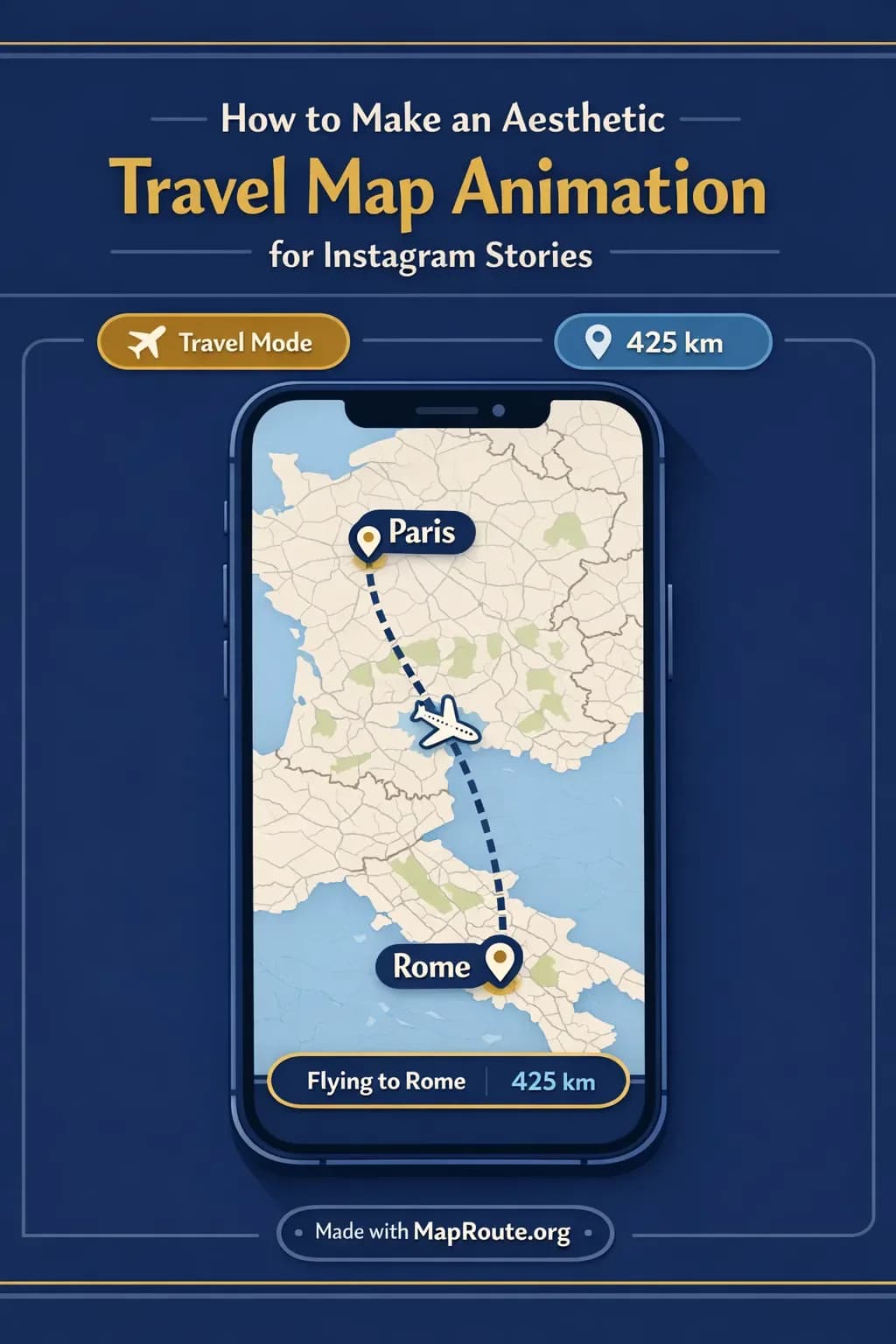
How to Make an Aesthetic Travel Map Animation for Instagram Stories
You can create an aesthetic travel map animation for Instagram Stories in a browser without installing any apps or learning complex editing software. Map Route lets you animate the journey between two places, then you can style it in your usual editing app before posting to Stories.
This guide walks you through a creator-friendly workflow: from picking a route (like London to Paris by rail or Westminster to Camden by road), to getting a 9:16 animation, to polishing it for Instagram. You’ll see what Map Route actually does, where its limits are, and how to combine it with your existing tools to get the aesthetic look you want.
Map Route visualizes a journey between two places; it isn’t a booking service, timetable, or proof that a specific train, bus, or airline operates that route.
Step-by-step: From idea to Instagram Story
1. Plan the story you want to tell
Before you open any tools, decide what the Story should feel like: a quick trip recap, a teaser for a vlog, or a mood piece in between your travel clips. That will influence the route you choose, the map mode, and how you edit the clip afterward.
- Trip overview: Use a longer route such as London → Paris by rail to set the scene for a Europe vlog or photo dump.
- Local day-in-the-life: Use a short city hop like Westminster → Camden by road to show your movement across town.
- Before/after reveal: Start with a map animation, then cut to your destination aesthetic shots.
2. Open Map Route in your browser
Go to maproute.org in a modern browser (for example Chrome or Safari). There’s no app to install and no desktop plugin; everything runs in the browser on phone or desktop.
If you want to download video later, you’ll need a free account with a verified email. Logged-out visitors can generate up to 3 journeys to experiment, but can’t download images or videos.
3. Set up a 9:16 canvas for Instagram Stories
Instagram Stories are vertical, so you want your animation in 9:16. Map Route doesn’t have an aspect ratio picker; instead it follows the size of your browser window.
- On phone: simply use Map Route on your mobile browser in portrait. The player will be 9:16 by default.
- On desktop: narrow your browser window below 768px wide before you generate the journey. Under that width, Map Route switches to a 9:16 layout that fits Stories, Reels, TikTok, and Shorts.
If your window is 768px wide or more, Map Route uses 16:9 (landscape). To get a vertical export, you must generate while the window is narrow or on a phone.
4. Choose your From and To points
On the Map Route homepage, type at least two characters into the From field. Suggestions will show labels, context, and a kind badge (like city, region, or country). Pick the one that matches your location best, then repeat for To.
For example:
- From: London, United Kingdom → To: Paris, France (for a rail or air corridor aesthetic).
- From: Westminster, London → To: Camden, London (for a close-up road path that feels like a day-in-the-life).
Place search depends on Photon and Nominatim. Many cities, regions, and countries are available, but not every small village or code is guaranteed to resolve.
5. Pick a visualization mode that matches your vibe
Map Route has four modes, each giving your Story a slightly different feel. For an aesthetic Instagram Story, think about what fits the mood of your trip:
- Road – A typical road path between your points. Great for city hops like Westminster → Camden, road trips, or “day out” Stories.
- Rail – A railway alignment if geometry is found. Perfect for London → Paris if you want to imply a train journey. It’s not a ticket or proof a passenger train runs there.
- Air corridor – An estimated great-circle line in the sky. Ideal for long-haul or city-to-city “flight” vibes.
- Geodesic – A straight line on the globe, useful as a clean minimalist line if road/rail can’t be computed.
If road or rail geometry can’t be computed for your pair, Map Route will say so and offer a geodesic line instead. There is no cruise or ferry mode, and you can’t mix plane + train + road in one journey.
6. Generate and preview your journey
Click Generate Journey. You’ll see prep stages like Resolving places, Requesting geometry, Framing the map, and Preparing journey. Once ready, a marker or vehicle icon will move along the computed line with a km tracker label.
Use the player controls to fine-tune the feel before you export:
- Play, Pause, and Replay to watch the whole animation.
- Speed options: 1x, 2x, or 4x. For Instagram Stories, 1x is usually ideal; it gives a journey length of roughly 8–28 seconds depending on distance.
The km tracker shows the length of the line Map Route computed (road path, railway geometry, air corridor estimate, or geodesic). It’s not driving time or an official mileage figure.
7. Download your animation
If you’re logged in with a verified free account and have daily quota left, you can download your animation as a video or still image.
- Download Video – Captures the animation you see in the browser player (including the km tracker) as MP4 (H.264) when supported, otherwise WebM.
- Export Image – Saves a WebP still frame in the current aspect ratio (so 9:16 if you generated in a narrow window or on mobile).
All Map Route downloads include a small “Made with MapRoute.org” watermark. There is no watermark-free export in the current product.
8. Style it in your usual editing app and post
Map Route focuses on the animated map itself. To add music, text, stickers, and transitions, bring the downloaded clip into your normal editor (CapCut, VN, Instagram’s own editor, or any other).
- Trim the clip if needed so it fits your Story sequence.
- Add music directly in Instagram or in your editor; Map Route doesn’t handle audio or beat-sync.
- Layer text like “London → Paris by rail” or “Camden day out” above the animation.
- Combine the map with real footage or photos for a richer narrative.
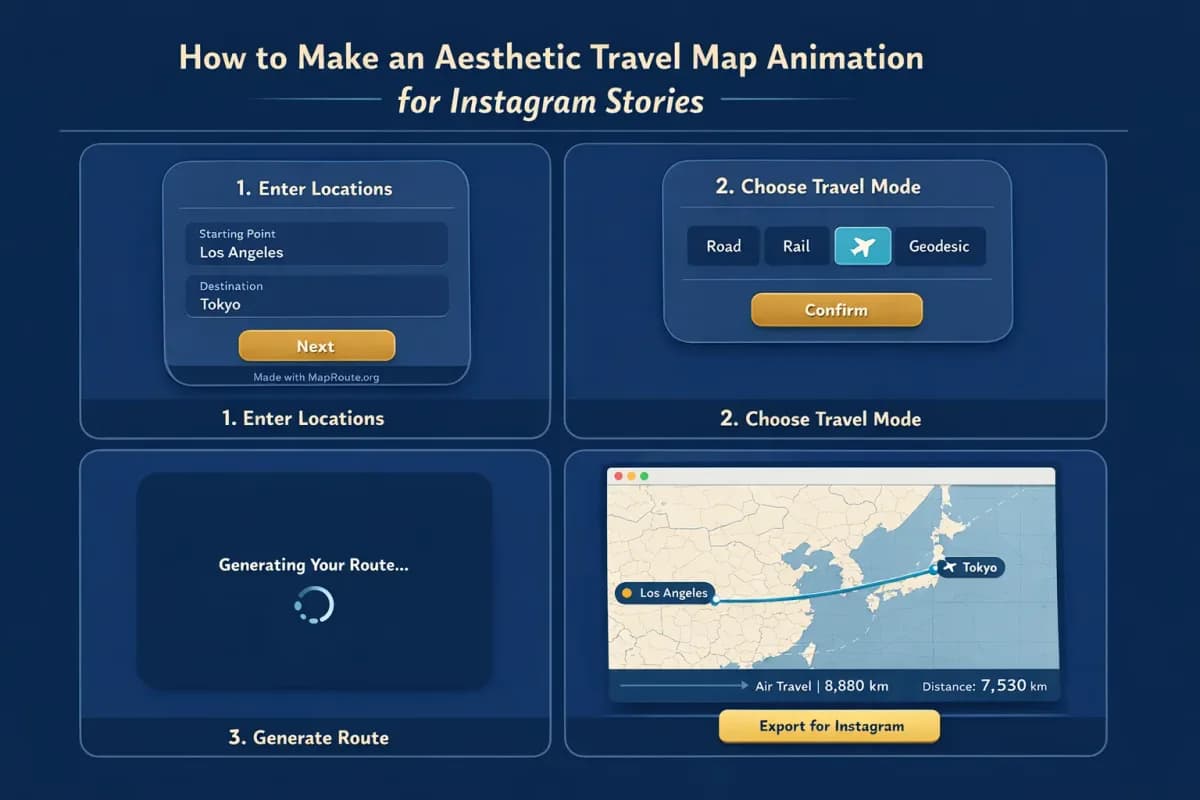
Key Map Route features that matter for Instagram Stories
For creators, the value of Map Route is how quickly it turns a journey into a clean animation you can drop into your vertical Story workflow. Here are the core features and constraints that shape how you use it.
Two-point journeys, not multi-stop itineraries
Each Map Route generate is exactly two endpoints: one From and one To. There’s no multi-stop waypoint editor inside the tool. If you want to show a multi-leg trip, generate each leg separately and then stitch the clips together in your video editor.
- Example: For a London → Paris → Amsterdam Story, you’d generate London → Paris and Paris → Amsterdam as two journeys, download both, then combine them in your editor.
- For a city day: Westminster → Camden, then Camden → another neighborhood, each as its own clip.
Automatic framing and subtle 3D-style motion
Map Route uses a MapLibre map with a light political-style basemap. It automatically frames your journey depending on distance: tighter for short hops, wider for long hauls. On some distances, it adds a slight pitch (up to around 22° for moderate trips) so the animation feels more dynamic, but this isn’t a full 3D globe or custom camera system.
You can’t set your own camera keyframes, orbit moves, or zoom choreography. The camera path is automatic.
Aspect ratio tuned by window size
Map Route doesn’t offer export presets like “Story” or “YouTube.” Instead, it follows your window width:
- Below 768px: 9:16, ideal for Instagram Stories, Reels, TikTok, and Shorts.
- 768px and above: 16:9, ideal for YouTube, landscape vlogs, or desktop presentations.
Because the export image and video use the current player aspect, you control the shape simply by resizing your window or using your phone in portrait.
Browser-based workflow with light account limits
Map Route is designed to be quick to try and simple to keep using:
- No install: open maproute.org in a browser.
- Logged-out: up to 3 journey generations, no downloads.
- Verified free account: 5 combined uses per UTC day (Generate Journey, Download Video, and Export Image each count as one).
- Sessions last 14 days; temporary or disposable emails aren’t allowed.
Example Story concepts using London and Camden routes
To make this concrete, here are a few Instagram Story ideas using the example routes London → Paris by rail and Westminster → Camden by road.
London to Paris by rail: trip intro Story
Use the rail mode to give followers a sense of your cross-border journey:
- Set your browser to 9:16 (phone in portrait or narrow desktop window).
- From: London, United Kingdom. To: Paris, France.
- Mode: Rail.
- Generate, then preview at 1x speed for a relaxed storytelling pace.
- Download the video and import into your editor.
- Add text overlays like “Eurostar weekend” or “London → Paris rail trip”.
- Follow the map clip with short vertical shots from the train, arrival, and first café stop.
This works well as the first Story in a highlight, giving geographic context before you dive into aesthetics.
Westminster to Camden by road: day-in-the-life Story
Shorter city routes feel more intimate and energetic. With road mode, Westminster → Camden can be the spine of a day-in-the-life sequence.
- Generate Westminster → Camden in Road mode at 9:16.
- Keep the animation at 1x or 2x depending on your music tempo.
- Download and bring it into your editor along with clips of coffee, walking shots, and Camden Market scenes.
- Use the map clip between morning and afternoon segments to show how your day moved across the city.
- Add stickers or doodles pointing at Camden on the map for a playful look.
Multi-leg Story using separate Map Route clips
Because Map Route doesn’t support multi-stop routes in a single generate, build multi-leg Stories by combining clips:
- Generate London → Paris (Rail) and download.
- Generate Paris → another city (Air corridor or Rail) and download.
- Arrange them back-to-back in your editor, adding a quick text transition between legs.
- Overlay consistent fonts and colors so the whole Story feels cohesive.
Styling your map animation to match Instagram aesthetics
The raw Map Route output is clean and minimal; your Instagram aesthetic comes from how you frame, layer, and color around it in your editor or inside Instagram itself.
Match clip length and pacing to Story behavior
At 1x speed, most Map Route journeys are 8–28 seconds. A single Story slide maxes out at 15 seconds, so you may want to trim or cut the clip:
- For a single slide: trim to the most visually interesting middle portion of the journey.
- For a mini-sequence: split a longer journey into two or three Story slides and add different captions or stickers on each one.
- For Reels: you can often keep the full 8–28 seconds, then overlay a trending sound.
Use text and overlays to clarify the journey
The map already shows place names, but text overlays help followers understand the context at a glance and keep the aesthetic on-brand.
- Add a simple From → To text at the top or bottom of the frame.
- Use your brand fonts and colors to keep consistency with the rest of your feed.
- For local routes like Westminster → Camden, add a subtitle such as “North London afternoon” or “Market day route”.
Lean into Instagram-native tools
Once the Map Route clip is in Instagram, you can use native tools to finish the look:
- Music: pick a track that matches the pace of the marker moving along the map. Map Route doesn’t sync to audio, so you align it by eye.
- Stickers: location stickers, timestamps, or mood stickers layered over the map.
- Drawing tools: highlight the route, circle the destination, or underline the km tracker for emphasis.
Using Map Route clips in Reels, Shorts, and vlogs
Even though this article focuses on Instagram Stories, the same Map Route clip can work across Reels, TikTok, YouTube Shorts, and longer vlogs with a few tweaks.
Reels and Shorts: reuse your 9:16 Story assets
If you’ve already generated a 9:16 clip for Stories, you can reuse it in Reels or Shorts:
- Keep the clip at 1x speed for calm, cinematic vibes, or switch to 2x/4x for more energetic edits.
- Add voiceover in your editor explaining the journey (“I took the train from London to Paris for a 48-hour escape…”).
- Combine the map with B-roll of trains, planes, or street scenes to build a mini travel film.
Map Route doesn’t handle voiceover, titles, or multi-clip timelines. Do all of that in your own editor after downloading the map animation.
Vlog intros and YouTube videos
For landscape vlogs, generate your route in a wide browser window (16:9) and download the video. Use it as a quick geography explainer near the start of your vlog, then switch back to your primary footage. This keeps your visuals consistent across platforms while reusing the same journey concept.
Map Route vs other ways to create travel map animations
If you’ve experimented with desktop software or mobile apps for route animations, Map Route fits a different niche: fast, browser-based, and focused on the map itself. Here’s how it compares at a high level.
| Tool type | Setup & learning curve | Control over camera & design | Best for |
|---|---|---|---|
| Map Route (browser-based) | No install; open in browser. Simple workflow: choose From/To, mode, generate. Minimal learning curve. | Automatic map framing and subtle pitch. No custom keyframes, 3D globe moves, or deep design controls. | Creators who want quick, clean journey animations to drop into Stories, Reels, Shorts, or vlogs. |
| Desktop motion graphics software (e.g., After Effects with plugins) | Requires install, license, and significant learning. Powerful but time-consuming for simple routes. | Very high: custom cameras, keyframes, 3D scenes, text and graphic design all in one timeline. | Studios or advanced editors needing fully bespoke, heavily branded route sequences. |
| Mobile route-animation apps (e.g., travel-story apps) | Install on phone, often with in-app purchases or subscriptions. Usually quick to start. | Moderate: templates, icons, and styles; some have multi-stop support and themed looks. | Casual creators who want all-in-one Story creation directly on mobile. |
For most Instagram Story use cases, Map Route is a good fit when you want a clean geographic animation fast, and you’re comfortable adding the final aesthetic touches in your usual editor.
Creator checklist for aesthetic travel map Stories
Before you generate your route
- Decide the narrative: trip intro, day-in-the-life, or teaser for a longer vlog.
- Choose a clear From and To that your audience will recognize.
- Decide which mode fits best (Road, Rail, Air corridor, or Geodesic).
- On desktop, resize your browser below 768px wide for 9:16; on phone, stay in portrait.
- Log into your Map Route account and confirm your email is verified if you plan to download.
While using Map Route
- Search your From and To and pick the most accurate suggestions.
- Generate the journey and test 1x, 2x, and 4x speed to see what feels right.
- Check that the km tracker and basemap labels are readable in 9:16.
- Use Copy link if you want to regenerate the same pair later.
Before posting to Instagram Stories
- Download the video (or still) and import it into your editing app.
- Trim or split the clip so each Story slide feels intentional.
- Add text overlays explaining the route and matching your brand style.
- Layer music, stickers, and doodles in Instagram to complete the aesthetic.
- Preview the full Story sequence to ensure pacing and legibility on a phone screen.
FAQ
Can I create multi-stop travel map animations for Instagram Stories with Map Route?
Not in a single generate. Each Map Route journey is exactly two points: one From and one To. There is no multi-stop waypoint editor. To show a multi-leg trip, generate each leg separately (for example, London → Paris, then Paris → Amsterdam), download each clip, and combine them in your own video editor before posting to Instagram Stories.
How do I make sure my Map Route animation is 9:16 for Instagram Stories?
Map Route doesn’t have an explicit aspect ratio setting. Instead, it follows your browser window size. If the window is under 768px wide (like a phone in portrait or a narrowed desktop window), the player uses a 9:16 layout that fits Instagram Stories, Reels, TikTok, and Shorts. Generate and download your journey while the window is narrow or on a phone to get a vertical animation.
Does Map Route add a watermark to Instagram Story exports?
Yes. All Map Route downloads—both video and image—include a small “Made with MapRoute.org” watermark. There is currently no watermark-free export option. If you need additional branding, you can add your own logo or text on top of the clip in your video editor or inside Instagram.
Is Map Route free to use for Instagram content?
Yes. Map Route is free to use in a browser. Logged-out visitors can generate up to 3 journeys but can’t download. With a verified free account, you get 5 combined uses per UTC day, where Generate Journey, Download Video, and Export Image each count as one use. If you need more, paid plans exist only as manual upgrades via the account page; there’s no self-serve checkout.
What devices and browsers can I use to make travel map animations?
Map Route works on phones and desktops in modern browsers, including common options like Chrome and Safari in typical use. You don’t install anything—just open maproute.org. Place search, journey generation, and playback work on both mobile and desktop. Video and image downloads require that you’re logged in with a verified account. In some browsers, video capture can fail; if that happens, the player still works and shows a notice.
What video format does Map Route export, and is it HD?
Download Video captures what you see in the Map Route player as a browser recording. When your browser supports it, exports are MP4 (H.264); otherwise, they’re WebM. This isn’t a guaranteed server-rendered HD export, and quality depends on your browser and device. If you need further compression or resizing for Instagram Stories, you can adjust that in your own editing app.
Can I add music, voiceover, or text directly in Map Route?
No. Map Route is focused on the animated map itself. It doesn’t handle audio upload, music sync, voiceover, titles, or multi-clip editing. The recommended workflow is to generate and download your map animation from Map Route, then bring it into your usual editor or Instagram’s built-in tools to add music, voiceover, text, stickers, and other Story elements.
Does Map Route work worldwide for Instagram travel content?
You can search many cities, regions, and countries worldwide, as long as the underlying public geocoders (Photon with Nominatim fallback) return results for those places. However, Map Route doesn’t guarantee coverage for every village, landmark, or code. Road paths use OSRM routing, rail uses OpenStreetMap railway geometry when available, and air corridor and geodesic lines are estimated between the points you select.